7. Notifications
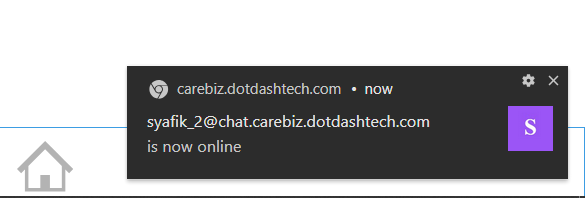
In a chat, several events can happen. For example, someone may add you to their contacts list and would like to know your presence status and thus be able to see whether you are online. Such events are listed at the bottom right with the pending event count on a black background.
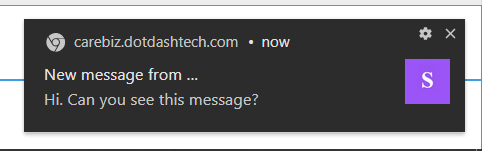
When your chat tab or window is not active, most browsers now offer the ability to notify you through the operating system, often with a message appearing in one of the screen corners. This allows you to continue your work while being able to immediately respond to incoming requests or messages.
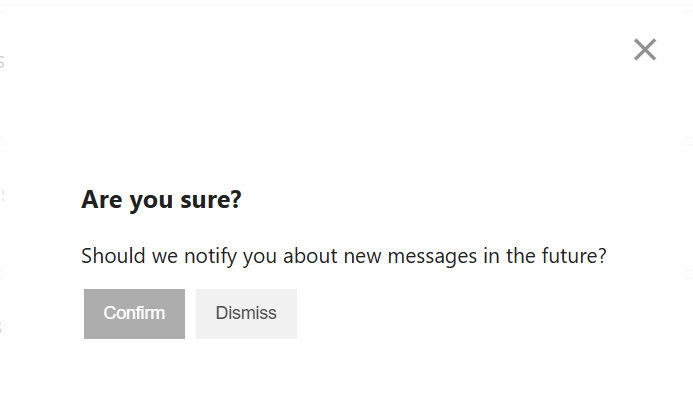
To prevent abuse, web pages by default do not have the right to pop up such notification messages. Unless the user has accepted or manually blocked the notification, the website will prompt user to turn notifications on for the website every time the chat function is visited.

You also can enable or disable notification manually by clicking View Site Information in the address bar and then clicking on Notifications.
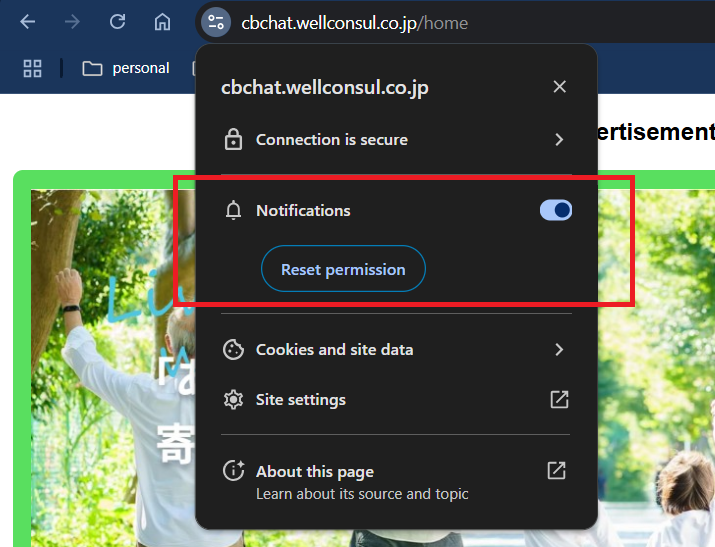
Enable the notification.
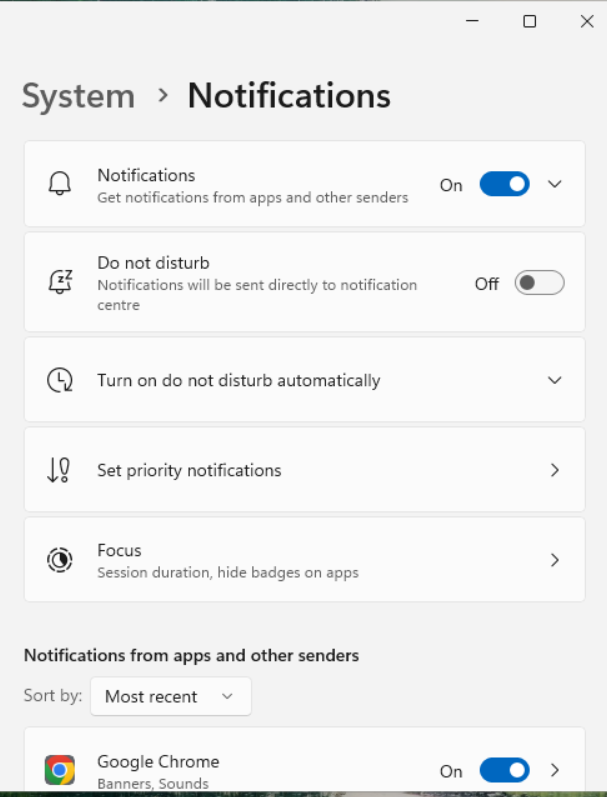
If you’ve already turned on the notifications as prompted but still do not receive notifications, then you might need to browse through your OS’s system settings
If you’re on Windows 10, then:
Go to Settings (App)
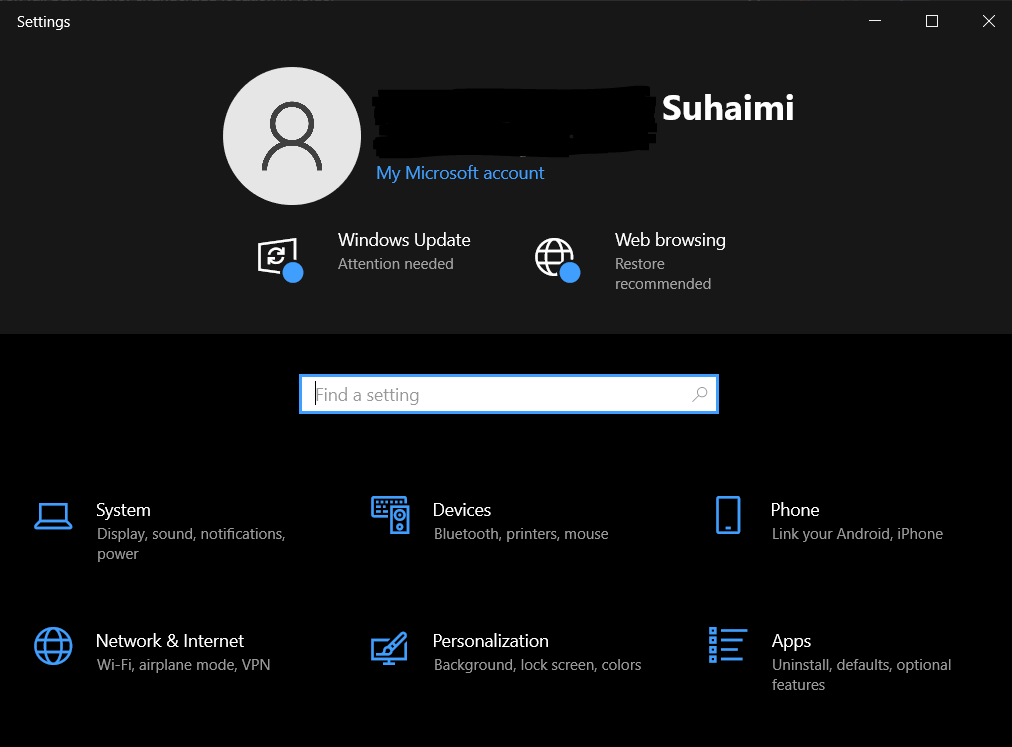
Click on System
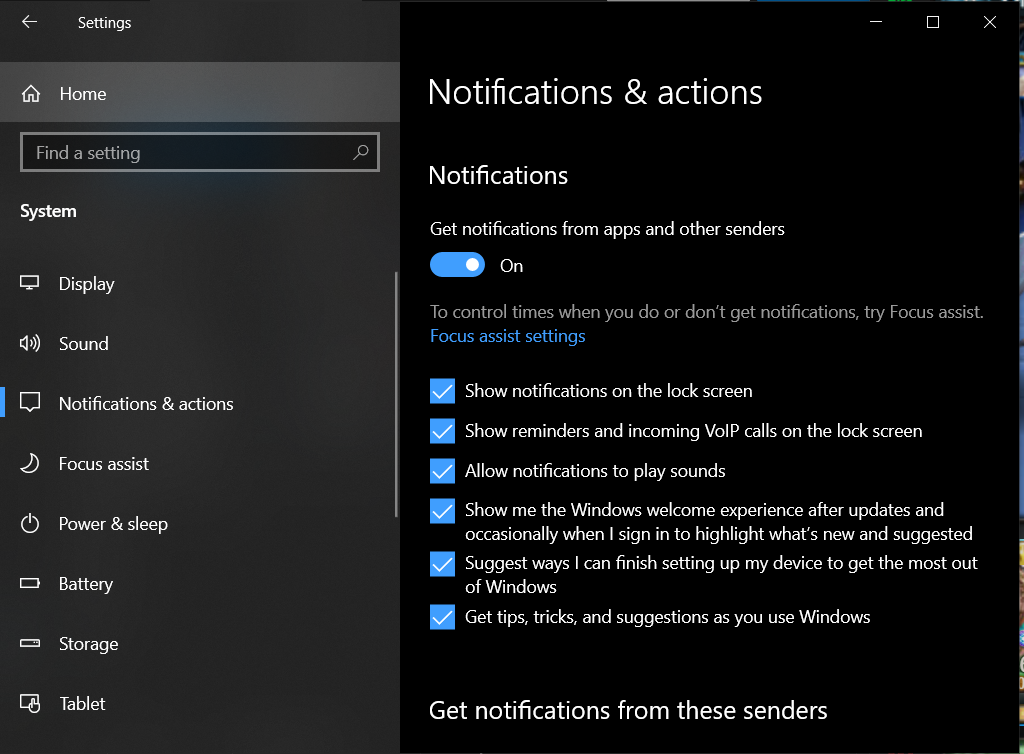
Click on the ‘Notifications and actions’ tab and make sure all checkboxes are ticked. This includes your main browser’s notification settings