6.2. Chat Room
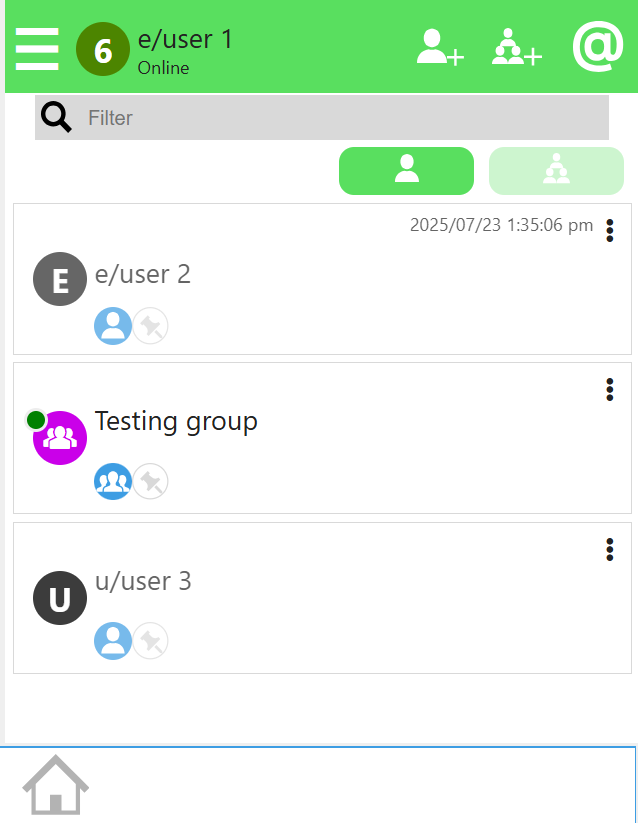
If you have previously used a different (company name) client with the same JID, your contacts list will be automatically filled with the same contacts you’ve already added on previous clients. Otherwise, you’ll have to add people into your contacts like below.
6.2.1. Adding a Contact
To add a contact/acquaintance, click on the icon below.

The icon can be found on the top right of the Contacts List page.
Once clicked, you’ll be redirected to a navigation bar where you can find all users on the site to add to your contacts list.
Type the name of the user account of your contact/acquaintance, and then click ‘Create’ to add them to your contacts.
Note that the tags at the start of the users’ name indicates their position and status on the site!
The u/ indicates that User55 is a regular user of CareBiz
The e/ indicates that User1 is an employee account of CareBiz
6.2.2. Creating a Group Chat
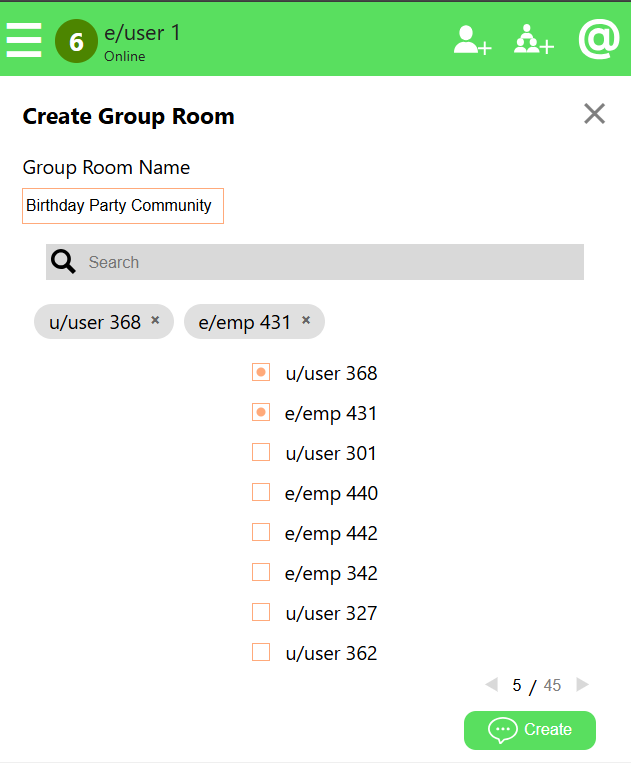
You can also make a group chat! To make one, click on the top right’s Group Icon!

Afterwards, search for and click on your buddy’s account. You can choose as many as you want. Then click on the ‘Create’ button and the Group Chat is made!
With that, you can start to chat with your friends or coworkers! Just click on one of your contacts and you will be directed to their chat window. To chat with a different friend or group, click on the X on the top right or the name of the current contact or friend group.
Reopening a chat window will restore the chat history.
The actual chat process is straightforward: Type into the Message input field and hit return; your message and the answers will appear in the chat window.
6.2.3. Managing Chat
Once you have a lot of people in your Contacts List, you might have trouble finding specific contacts, users who are online, or remembering who your contact named ‘Backpain Doctor’ is. That’s why we have features to help manage you manage it for ease of use.
Search for Specific Contact

Once your chat gets too big, it might take a while to scroll through your Contacts List to find one specific person you want to message. To manage this, you can simply use the search bar on top of the Contacts List, and type the name of the contact you’re trying to find.
Modifying a Contact
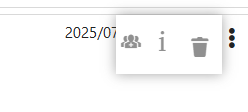
Click on the Meatball Icons (aka 3 Dots) on the right of the contact’s name in chat. There will be 3 buttons on the menu, a Group icon, a Letter I icon, and a trash bin icon.
The Group icon is another way for you to invite the contact into your group chat!
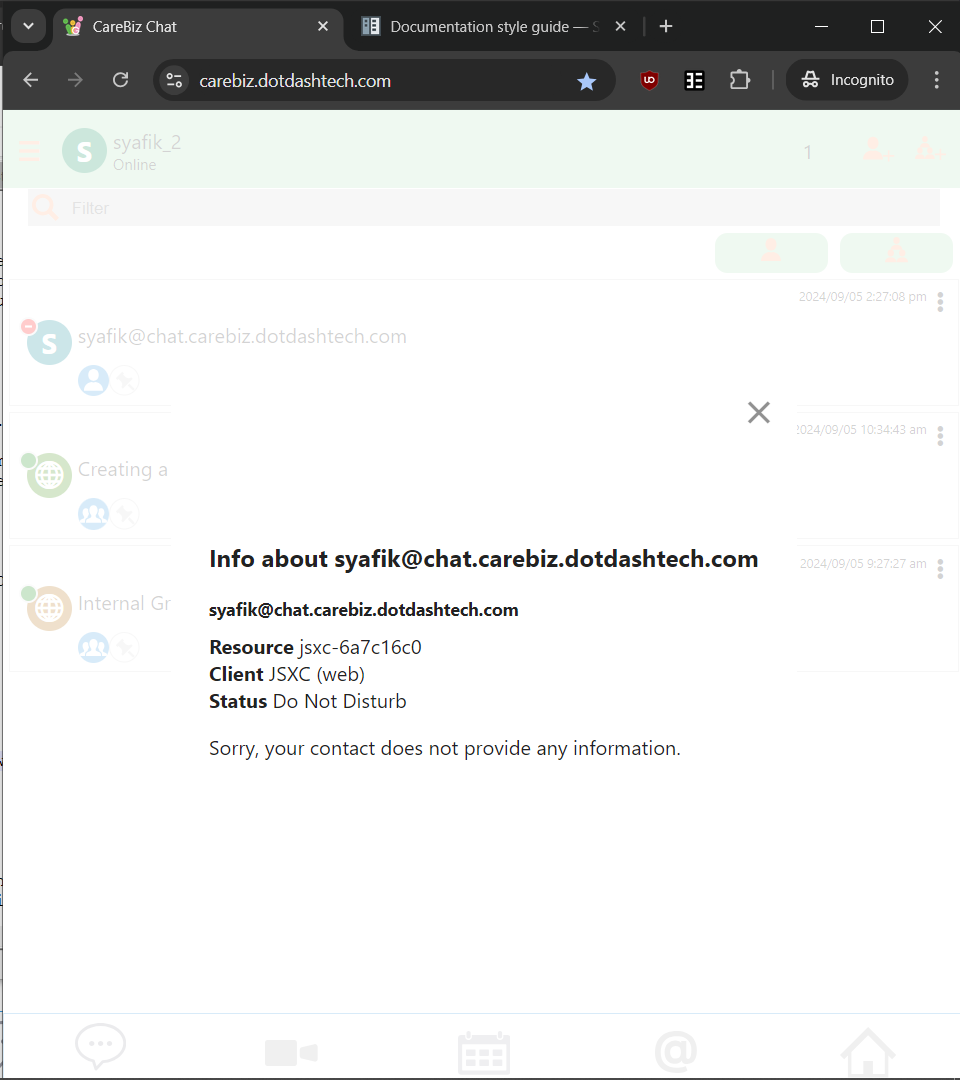
The Letter I icon displays your contacts/group chat information, such as their JID account name, their custom user Status, their online status, or the participants of the group chat.
Finally, the Trash Bin icon removes the account from your Contacts List. You or the other account will have to add each other back to look at the chat history or message each other again.
6.2.4. Send Messages
To send a message, type your message in the text box at the bottom of the chat window and press Enter or Click the send button (paper plane icon). To add a new line in your message, press Shift + Enter.
If the Web view is small enough, the contact side bar will be hidden. And you only can send the message by clicking the send button. Enter key will create a new line instead of sending the message.
In Mobile view, sending a message is only possible by clicking the send button. Enter key will create a new line instead of sending the message.
6.2.5. Setting Your Status

You can tell your contacts whether you are available, e.g. by setting the status to away or do not disturb.
Your contacts will see this by the colored bar left of their contacts list entry for you which will change to yellow or red as a result of this choice.
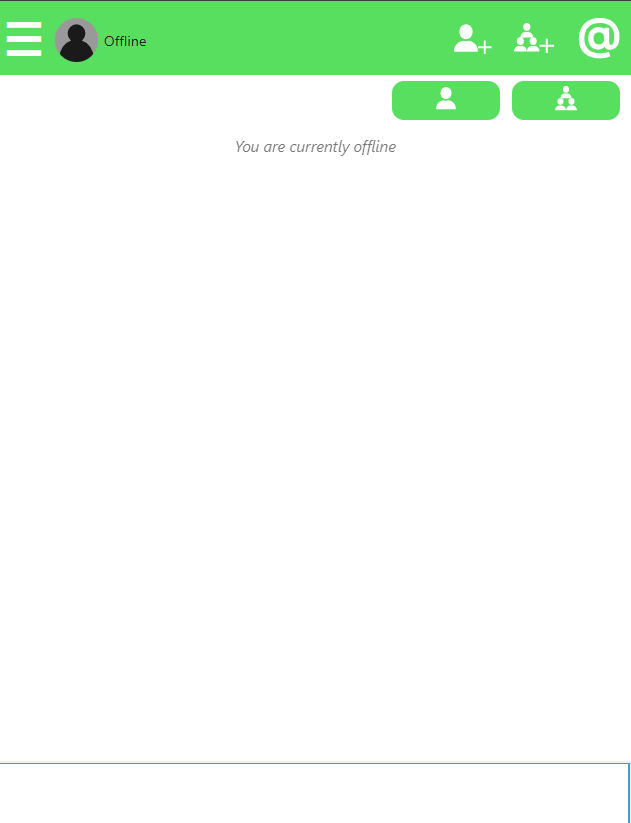
Users with ‘Offline’ status are treated as if they’re logged out by the chat system. You can’t view chat nor receive messages from it until the status is changed back to ‘Online’, ‘Away’, ‘Extended Away’ or ‘Do Not Disturb’.
Once you’re back online, the chat will be re-enabled, and you will receive messages your contacts sent to you while you were offline.
6.2.6. Message Status
Each message you send has a status indicator to the right of it. This indicator shows whether your message has been sent, delivered, read, message sending, or failed to send.
1. Private Chat Message Status - The following icons are used:
A single check mark means your message has been sent to the server.
A double check mark means your message has been delivered to the recipient’s device.
An eye icon means your message has been read by the recipient.
A spinning circle means your message is in the process of being sent.
A red mark means your message has failed to send.
2. Group Chat Message Status - The following icons are used:
A single check mark means your message has been sent to the server, but not yet delivered to all group members.
A double check mark means your message has been delivered to all participants’ devices.
A spinning circle means your message is in the process of being sent to group chat participants.
A red mark means your message has failed to send to group chat participants.